- This instructions are meant for setting up emails on thunderbird if this doesn't work for you check out setting emails on other email clients
- I’ll be working from Thunderbird version 24.5.
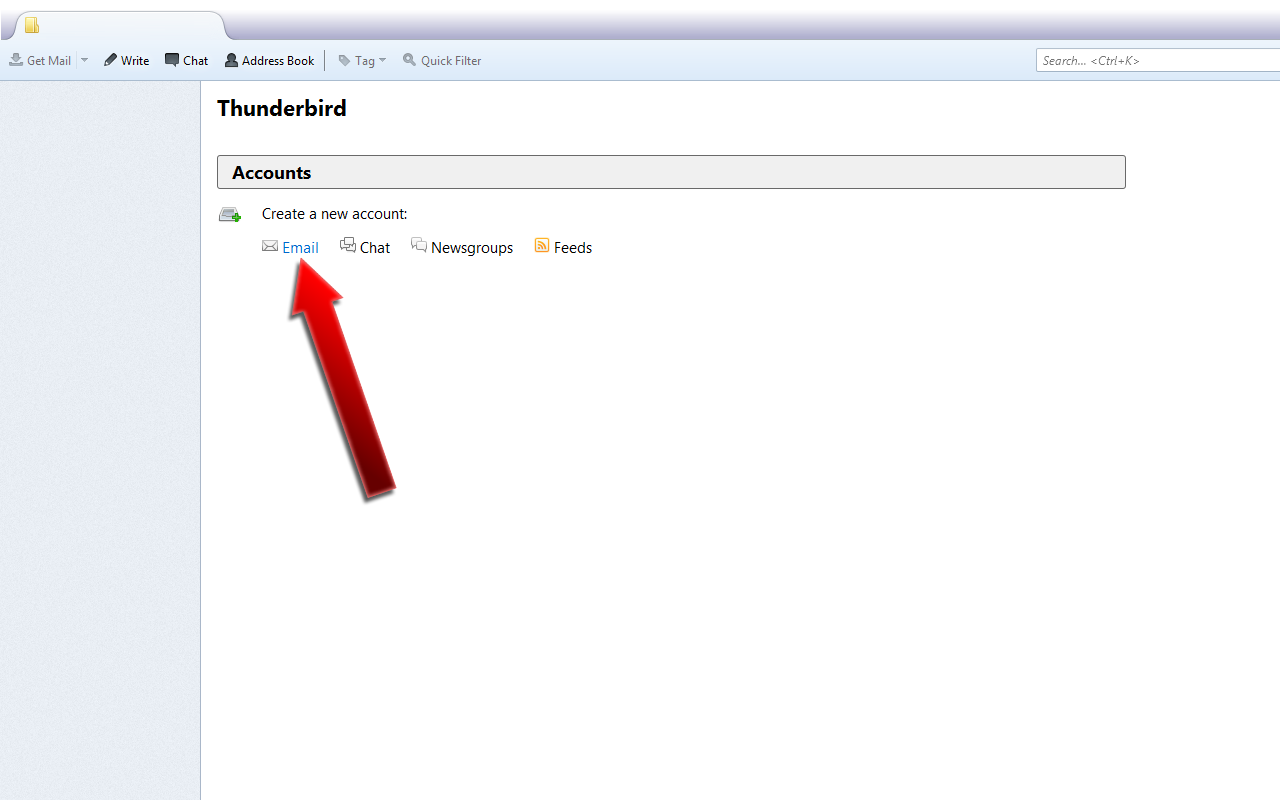
Click Email.
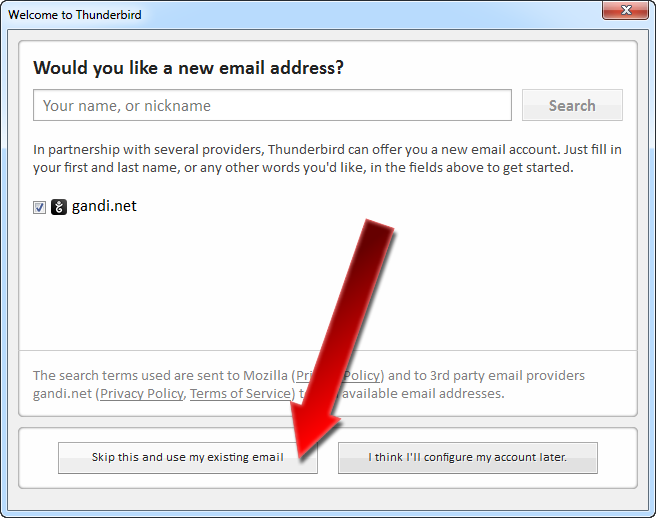
Step 2: Skip and Use an Existing Email
Click Skip this and use my existing email.
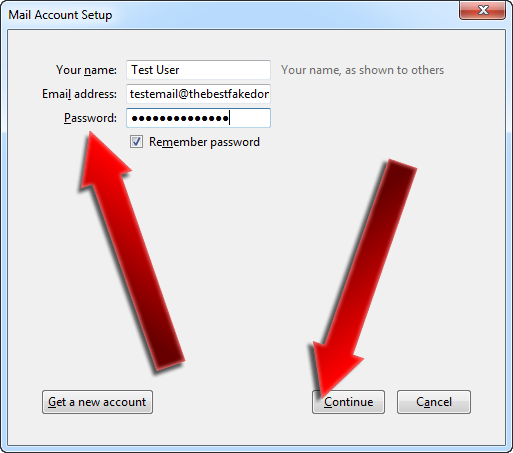
Step 3: Enter Basic Account Information
Enter Your name followed by your Email address, and then your Password.
Step 4: Select Manual Configuration
While Thunderbird tries Looking up configuration: Trying common server names , click Manual config if you already know your mail server hostnames.

If you’ve configured your e-mail in cPanel then you can either select POP3 or IMAP for your Incoming server type.
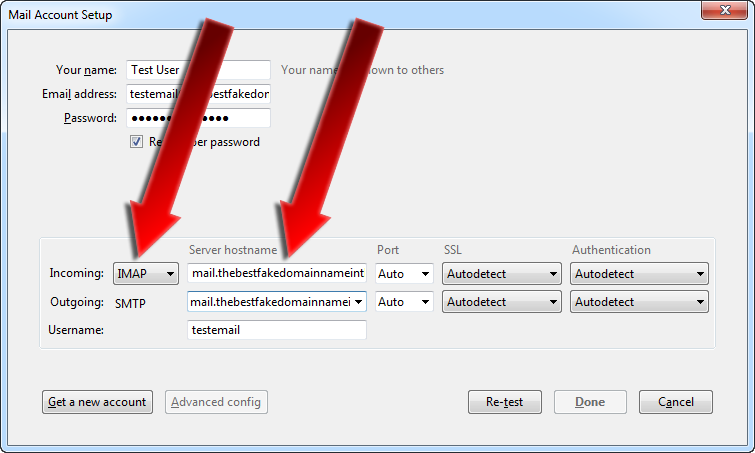
For IMAP, the Incoming Server hostname should be set to the correct hostname. Generally, this will be mail.yourdomain.com or similar.
Also make sure that for IMAP the Port is set to 143, or Auto.
For POP3, the Incoming Server hostname should be set to the correct hostname. Generally, this will be mail.yourdomain.com or similar.
Also make sure that for POP3 the Port is set to 110, or Auto.
For SMTP, the Outgoing Server hostname should be set to the correct hostname. Generally, this will be mail.yourdomain.com or similar.
Also make sure that for SMTP the Port is either set to 25, or Auto.
Select Re-test to again probe the server for additional configuration details.
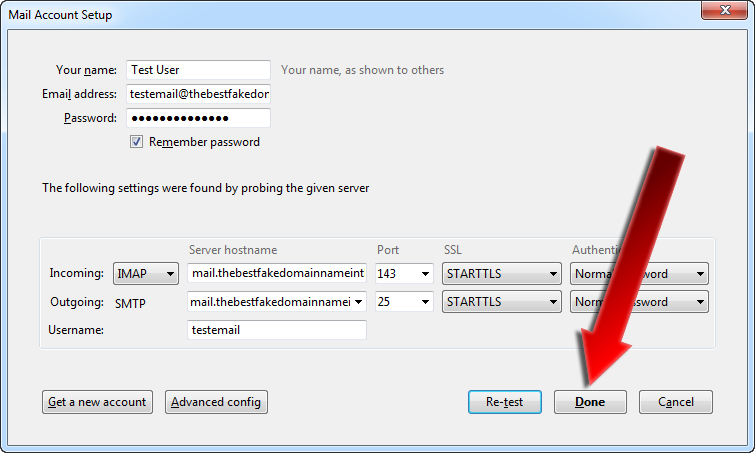
Verify all of the server information, and then click Done to continue.
If you haven’t installed a valid security certificate on your mail server, then your mail server is likely using a default certificate and you may receive the following error:
If you’re confident that you’ve entered the correct mail server information, then you should be able to simply click Confirm Security Exception without any adverse security repercussions.
That’s it, Thunderbird should now be set up to receive e-mail!